> For the complete documentation index, see [llms.txt](https://help.xaman.app/app/llms.txt). Markdown versions of documentation pages are available by appending `.md` to page URLs; this page is available as [Markdown](https://help.xaman.app/app/getting-started-with-xaman/importing-your-account/...a-xaman-tangem-card.md).
# How to import your Xaman card
How to add a Xaman card
I just received my Xaman cards and I'm ready to set them up.
**Importing a Xaman card takes about two minutes. All you need is your phone with NFC turned on and the card itself. No seed phrase, no password, no paperwork.**
#### Before you begin
You will need:
* A phone with **NFC** hardware (most iPhones from the 7 and up, most Android phones from 2018 and up)
* **NFC enabled** in your phone settings (see below)
* Your **Xaman card** (the credit-card-sized hardware security key)
* The **Xaman app** installed and updated to the latest version
**If NFC is not enabled on your phone, the "Add Tangem card" button will not appear** on the Add account screen. You will not be able to start the import until NFC is turned on.
How to enable NFC:
* **iPhone**: NFC is always on by default. There is no toggle. If you are using an iPhone 7 or later, NFC is available.
* **Android**: Swipe down from the top of the screen to open the notification panel. Find the **NFC** quick-settings tile and tap it so it is highlighted (on). Alternatively, go to **Settings > Connections > NFC** (the exact path varies by manufacturer) and flip the switch on.
If your phone does not have NFC hardware at all, Xaman will show an error: *"Using Tangem cards requires NFC capabilities. Your phone does not seem to support NFC."* You will need a different device.
#### Importing a new card
1. Open Xaman, tap **Settings**, then **Accounts**, then tap **+ Add account**.
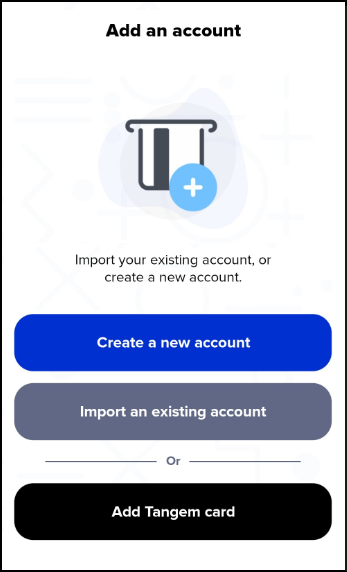
2. Tap the **Add Tangem card** button and hold your card against the back of your phone where the NFC reader is.
3. Xaman reads the card. If the card is new and unused, you will see:
Tap **Continue**.
The card generates your wallet key on its secure element. The key never touches your phone.\
\
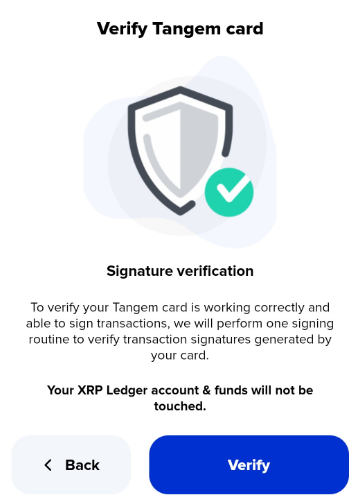
4\. Xaman takes you to the **Signature verification** screen:
Tap **Verify**, then hold the card against your phone again.
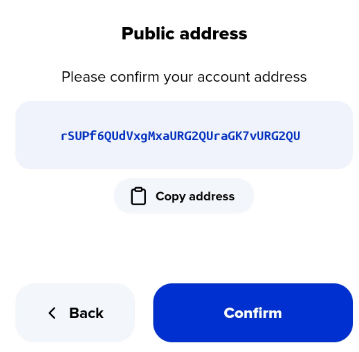
5. Xaman shows your new **r-address**:\
This is the address your card controls. Tap **Confirm**.
6. If your account is brand new and has no funds on the ledger yet, Xaman shows an **activation notice**:
> You imported a new account on the ledger. The account is not activated. Account activation is a requirement on the ledger. To activate, you will have to make a first deposit of at least 1 XRP.
>
> The first 1 XRP deposited into your account cannot be spent, but will be reserved to keep your account active and pay for on-ledger fees.
>
> Your reserved XRP will not show up as a balance in Xaman, but you can view your reserve with the "Explain my balance" button on the home screen, above your XRP balance.
\
Tap **Next, I understand**.
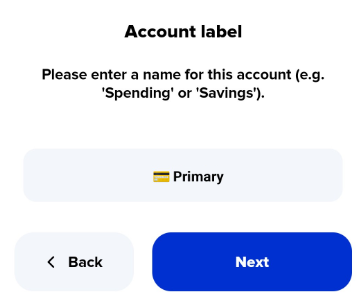
7. Enter a **name** for the account. The field is pre-filled with a card emoji and the card's resolver name (if one exists). Change it to whatever you like, for example *Main card* or *Backup card*. Tap **Next**.
8. **Account import complete!**
> You just added your account
\
Tap **Hooray, let's go!** and you are taken back to the home screen.
#### What if the card was used before?
If you scan a card that already has a wallet on it, Xaman shows a **warning** instead of the "Brand new card!" message:
You have three options:
| Button | What it does |
| ------------------- | ---------------------------------------------------------------------- |
| **Cancel** | Dismisses the warning. The card is not imported. |
| **Contact support** | Opens your email app with a pre-filled message to . |
| **Continue anyway** | Proceeds with the import (steps 4 to 8 above). |
If you received a card that you expected to be blank, **do not continue**. Contact support before importing.
#### Activating your account
A new Xaman card creates a brand-new XRPL account. To activate it, send at least **1 XRP** to the r-address Xaman showed you during import. This is the XRPL base reserve. It is not a fee and it is not spendable, but it keeps your account active on the ledger.
You do **not** need to activate both cards if you are setting up a backup pair. Only the primary card's account needs the 1 XRP.
#### Setting up a backup card
If you want to use the Tangem Backup xApp, you need to import **two** cards into Xaman. Repeat the steps above for your second card.
Only the **primary** card's account needs the 1 XRP activation. The backup card's account does not.
[How to configure a backup signing account](/app/xaman-tangem-cards/how-to-configure-a-backup-signing-account.md)
#### Troubleshooting
**"Your phone does not seem to support NFC"**
Your device does not have an NFC reader. Use a different phone.
**"Add Tangem card" button is missing**
NFC is not enabled on your phone. Turn on NFC (see "Before you begin" above), then close and reopen Xaman. The button will appear.
**"Account already exists!"**
The r-address derived from this card is already imported in your Xaman app. Remove the existing account first, or use a different card.
**"Unable to verify the signature!"**
The card did not produce a valid signature. Make sure the card is held firmly against the NFC reader and try again. If the problem persists, the card may be faulty. Contact support.
**"Unexpected error occurred."**
Something went wrong during the scan or wallet creation. Close the app, reopen it, and try again. If it keeps happening, export your session log (Settings > Help > Export session log) and send it to support.
#### *Frequently Asked Questions*
**Do I need to enter a seed or mnemonic phrase?**
No. The key is generated and stored on the card's secure element. Xaman never sees your private key.
**Can I import the same card into two different phones?**
Yes. The card is the key. You can scan it into any phone that has NFC and the Xaman app.
**What is the card symbol in my account name?**
The `💳` prefix is a visual marker that the account is backed by a physical Xaman card. You can change or remove it.
**I received a card that was already used. Is my account at risk?**
Not necessarily. If the card came from Xaman or someone you trust, it is fine. If you are unsure where the card came from, do not import it and contact [**Xaman Support**](https://xaman.app/detect/xapp:xumm.support-md) from within the app before proceeding.
#### Need help?
Contact [**Xaman Support**](https://xaman.app/detect/xapp:xumm.support-md) from within the app. Include a screenshot of any error message and your session log if available.
---
# Agent Instructions
This documentation is published with GitBook. GitBook is the documentation platform designed so that both humans and AI agents can read, navigate, and reason over technical content effectively. Learn more at gitbook.com.
## Querying This Documentation
If you need additional information that is not directly available in this page, you can query the documentation by asking a question.
Perform an HTTP GET request on the following URL with the `ask` and `goal` query parameters:
```
GET https://help.xaman.app/app/getting-started-with-xaman/importing-your-account/...a-xaman-tangem-card.md?ask=&goal=
```
`ask` is the immediate question: it should be specific, self-contained, and written in natural language.
`goal` is what the user is ultimately trying to achieve, the reason they need the answer. Sharing it helps GitBook give you a better, more relevant answer. A goal is most helpful when it describes the outcome the user wants rather than restating the question. For example, with `ask=how do I create an API token`, a goal like `automate deployments from our CI pipeline` lets GitBook tailor the answer to that use case.
The response will contain a direct answer to the question and relevant excerpts and sources from the documentation.
Use this mechanism when the answer is not explicitly present in the current page, you need clarification or additional context, or you want to retrieve related documentation sections.