> For the complete documentation index, see [llms.txt](https://help.xaman.app/app/llms.txt). Markdown versions of documentation pages are available by appending `.md` to page URLs; this page is available as [Markdown](https://help.xaman.app/app/earning-yield-with-flare/using-the-flare-xapp/depositing-xrp-with-the-flare-xapp.md).
# Depositing XRP with the Flare xApp
How to deposit XRP into the Flare yield vault, and what each signature does
### Background
The **Flare XRPFi Yield** xApp moves XRP from your XRP Ledger (XRPL) account to the Flare network, where it earns yield in a vault run by Upshift. This article covers the XRP Ledger.
A deposit takes two signatures in Xaman. The first sends an instruction to Flare to prepare your deposit. The second sends your XRP. Flare then converts your XRP into FXRP, a token that represents XRP one-to-one, and places it in the vault for you.
### Before you get started
* A **Full access** account in Xaman.
* Enough XRP for your deposit, the fees, and your account reserve. See [*Fees in the Flare xApp*](https://help.xaman.app/app/earning-yield-with-flare/using-the-flare-xapp/fees-in-the-flare-xapp.md) for the current fees.
### Request a deposit
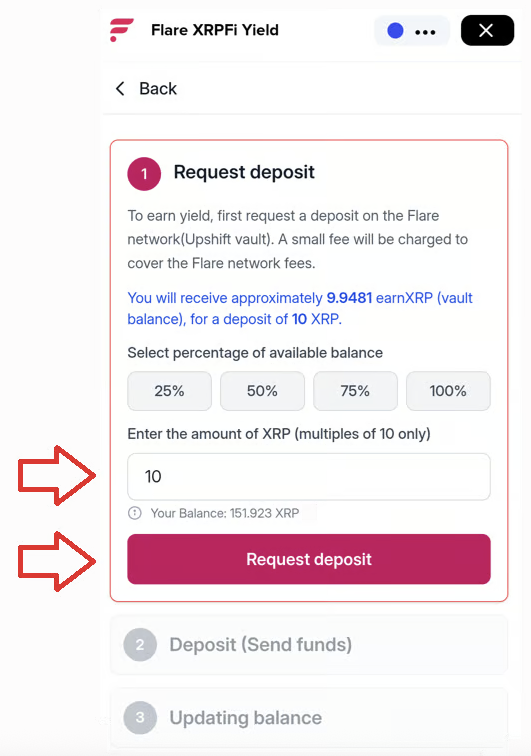
1. Tap **xApps** in the bottom navigation bar.
2. Tap **Flare XRPFi Yield**.
3. Tap **Deposit**.
4. Enter the amount of XRP you want to deposit. The amount must be a multiple of 10 XRP.\
5. Tap **Request deposit**. The signing screen opens.
6. Check the **Amount**, then slide to accept.
This signature pays Flare's instruction fee. None of the XRP you are depositing leaves your account yet, and Xaman charges no fee on it.
### Send your XRP
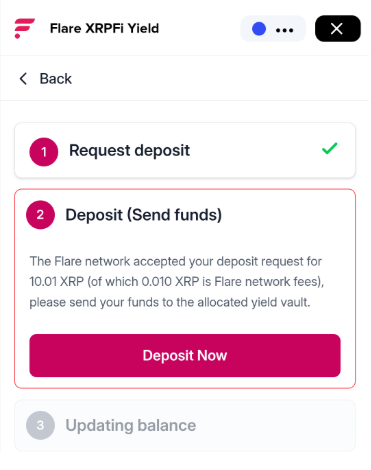
1. When Flare accepts your request, tap **Deposit Now**. The signing screen opens.
2. Check the **Amount** and the **Network & Service Fee**.
3. Slide to accept.
{% hint style="warning" %}
The **Amount** on this signing screen does not include Xaman's service fee. More XRP leaves your account than the **Amount** shows. Add the **Amount** and the **Network & Service Fee** to see the total.
{% endhint %}
This signature sends your XRP to Flare, with Flare's minting fee included in the **Amount**. Xaman's service fee is charged with the same signature, as a separate payment.
The xApp shows **Updating balance** while Flare creates your FXRP and places it in the vault. No further signatures are needed. When it finishes, your vault balance appears on the xApp's main screen in earnXRP, the token that represents your share of the vault.
### Example: depositing 10 XRP
This example shows what you see on each signing screen when you deposit 10 XRP, as of November 2026. Your amounts depend on the size of your deposit and the current fees.
On the first signing screen, the **Amount** is about 0.952 XRP. It is made up of:
* Flare's operator fee of 0.95 XRP.
* Flare's collateral reservation fee of about 0.002 XRP (about 0.02% of the deposit).
On the second signing screen, the **Amount** is 10.01 XRP. It is made up of:
* The 10 XRP you are depositing.
* Flare's minting fee of 0.01 XRP (0.1% of the deposit).
The **Network & Service Fee** on the second screen shows about 0.05 XRP. This is Xaman's service fee of 0.05005 XRP (0.5% of 10.01 XRP), plus the network fee.
In total, about 11.01 XRP leaves your account for a 10 XRP deposit. About 1.01 XRP of that is fees, mostly Flare's fixed operator fee. On larger deposits, the fixed fee is a much smaller share of the total.
### What happens next
Your funds earn yield in the vault, and the value of your earnXRP grows over time. The xApp shows your earnXRP balance and its current value in FXRP.
To withdraw, open the xApp and tap **Withdraw**. A withdrawal also takes two signatures, with a waiting period between them. The xApp shows when your withdrawal will be ready.
### Frequently asked questions
**Why can't I deposit XRP?**
Check that the amount is a multiple of 10 XRP, and that you have enough XRP left for the fees and your account reserve. Your account must also have **Full access** in Xaman. If none of these apply, contact support through the [Xaman Support xApp](https://xaman.app/detect/xapp:xumm.support-md) and include a screenshot of the error.
**Why did I have to sign twice?**
The first signature asks Flare to prepare your deposit and pays Flare's instruction fee. The second signature sends your XRP. Flare only accepts your XRP after it has prepared the deposit.
**Why did more XRP leave my account than the signing screen showed?**
The **Amount** on the second signing screen does not include Xaman's service fee or the network fees. Add the **Amount** and the **Network & Service Fee** to see the total.
Crypto assets can change in value. This article explains how the feature works and is not financial advice.
### See also
* [The Flare XRPFi Yield xApp](https://help.xaman.app/app/earning-yield-with-flare/using-the-flare-xapp/the-flare-xrpfi-yield-xapp.md)
* [Fees in the Flare xApp](https://help.xaman.app/app/earning-yield-with-flare/using-the-flare-xapp/fees-in-the-flare-xapp.md)
* [Understanding Xaman Service Fees](https://help.xaman.app/app/getting-started-with-xaman/understanding-the-xaman-service-fee.md)
---
# Agent Instructions
This documentation is published with GitBook. GitBook is the documentation platform designed so that both humans and AI agents can read, navigate, and reason over technical content effectively. Learn more at gitbook.com.
## Querying This Documentation
If you need additional information that is not directly available in this page, you can query the documentation by asking a question.
Perform an HTTP GET request on the following URL with the `ask` and `goal` query parameters:
```
GET https://help.xaman.app/app/earning-yield-with-flare/using-the-flare-xapp/depositing-xrp-with-the-flare-xapp.md?ask=&goal=
```
`ask` is the immediate question: it should be specific, self-contained, and written in natural language.
`goal` is what the user is ultimately trying to achieve, the reason they need the answer. Sharing it helps GitBook give you a better, more relevant answer. A goal is most helpful when it describes the outcome the user wants rather than restating the question. For example, with `ask=how do I create an API token`, a goal like `automate deployments from our CI pipeline` lets GitBook tailor the answer to that use case.
The response will contain a direct answer to the question and relevant excerpts and sources from the documentation.
Use this mechanism when the answer is not explicitly present in the current page, you need clarification or additional context, or you want to retrieve related documentation sections.