> For the complete documentation index, see [llms.txt](https://help.xaman.app/app/llms.txt). Markdown versions of documentation pages are available by appending `.md` to page URLs; this page is available as [Markdown](https://help.xaman.app/app/learning-more-about-xaman/how-to-rekey-your-account.md).

# How to Rekey an XRP Ledger (XRPL) Account

How to rekey an XRPL account

### Concept and Implementation

The XRP Ledger allows an account to authorize a secondary key pair, called a [*regular key pair*](https://xrpl.org/cryptographic-keys.html), to sign transactions on behalf of another account.

It is often used to protect an account by securing the master key and using the regular key in its place. This has multiple advantages;

1. The primary account is safer because the master key does not need to be generally available
2. The regular key account does not need to be activated so has no value in and of itself
3. The regular key can be removed or swapped out as needed

### Example

A good example of how this works would be to look at the recommended configuration of a pair of [Xaman (Tangem) cards](/app/xaman-tangem-cards/xumm-tangem-cards.md).

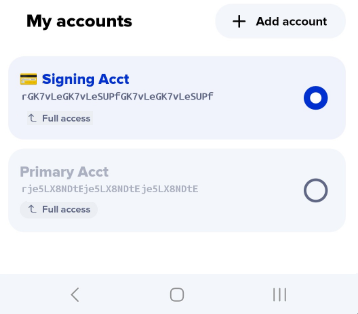
In this case, you have a Primary account on one card and you have a Signing account on another card.

When you run the [Tangem Backup xApp](broken://pages/Ypotp0jrufYxwEF2ciFO), it creates a "link" between the two accounts which is called a regular key pair. It connects the Primary account to the Signing account which allows you to sign transactions on the Primary account **using the Signing account**.

The following steps explain how to manually configure a regular key pair between two XRPL accounts.

### Step 1: Make sure you have a Primary account <a href="#h_46e6d7f417" id="h_46e6d7f417"></a>

The Primary account must be imported into Xaman (formerly Xumm) with **Full access**. (You must be able to sign transactions on this account.)

This is the account that will have your XRP, your Trust Lines, Escrows, DEX transactions, etc.

If you are new to Xaman and don't have an XRP Ledger account yet, you can create one by following the instructions in this article:

<table data-view="cards"><thead><tr><th align="center"></th><th data-hidden></th><th data-hidden></th><th data-hidden data-card-cover data-type="files"></th><th data-hidden data-card-target data-type="content-ref"></th></tr></thead><tbody><tr><td align="center">How to Create an XRP Ledger account</td><td></td><td></td><td><a href="https://3221812686-files.gitbook.io/~/files/v0/b/gitbook-x-prod.appspot.com/o/spaces%2FMiHAzvIPISVuuzt0AeOR%2Fuploads%2Fgit-blob-b5238c2eccc71a5b19130e916175a5cbd81dc715%2FCreating%20in%20forest.png?alt=media">Creating in forest.png</a></td><td><a href="/app/getting-started-with-xaman/your-first-xrp-ledger-account/how-to-create-an-xrpl-account.md">How to create an XRP Ledger account</a></td></tr></tbody></table>

### Step 2: Make sure you have a Signing account <a href="#h_daeec8d8c2" id="h_daeec8d8c2"></a>

The Signing account must be imported into Xaman with **Full access**. (You must be able to sign transactions on this account.)

This account does not need to contain XRP and does not even need to be activated. As long as you have full access to the account, it can be used to sign transactions on the Primary account.

If you don't have signing account yet, you can create one by following the instructions in this article:

<table data-view="cards"><thead><tr><th align="center"></th><th data-hidden></th><th data-hidden></th><th data-hidden data-card-cover data-type="files"></th><th data-hidden data-card-target data-type="content-ref"></th></tr></thead><tbody><tr><td align="center">How to Create an XRP Ledger account</td><td></td><td></td><td><a href="https://3221812686-files.gitbook.io/~/files/v0/b/gitbook-x-prod.appspot.com/o/spaces%2FMiHAzvIPISVuuzt0AeOR%2Fuploads%2Fgit-blob-b5238c2eccc71a5b19130e916175a5cbd81dc715%2FCreating%20in%20forest.png?alt=media">Creating in forest.png</a></td><td><a href="/app/getting-started-with-xaman/your-first-xrp-ledger-account/how-to-create-an-xrpl-account.md">How to create an XRP Ledger account</a></td></tr></tbody></table>

### Step 3: How to set a Regular Key Pair <a href="#h_daeec8d8c2" id="h_daeec8d8c2"></a>

Once you have completed the following steps, you will be able to sign transactions on your Primary account using **both** your Primary account **and** your Signing account.

1\) Launch Xaman and switch accounts to your Signing account.

<figure><img src="https://3221812686-files.gitbook.io/~/files/v0/b/gitbook-x-prod.appspot.com/o/spaces%2FMiHAzvIPISVuuzt0AeOR%2Fuploads%2Fgit-blob-a864f0d389962dc5855bbb923217b11bc7d8d690%2Fregular%20keys%20-2.png?alt=media" alt=""><figcaption></figcaption></figure>

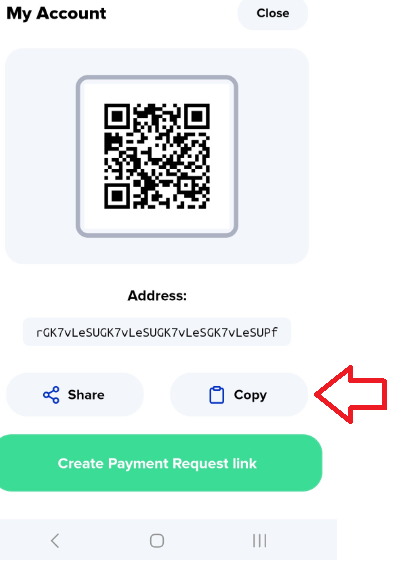
2\) Press the **Request** button then press the **Copy** button.

<figure><img src="https://3221812686-files.gitbook.io/~/files/v0/b/gitbook-x-prod.appspot.com/o/spaces%2FMiHAzvIPISVuuzt0AeOR%2Fuploads%2Fgit-blob-7b697ad6c31c13bdde962f88d63661017dba4c78%2Fregular%20keys%20-3.png?alt=media" alt=""><figcaption></figcaption></figure>

3\) Switch accounts to your **Primary** account and go to [**XRP Ledger Services**](https://xrpl.services/)**.**

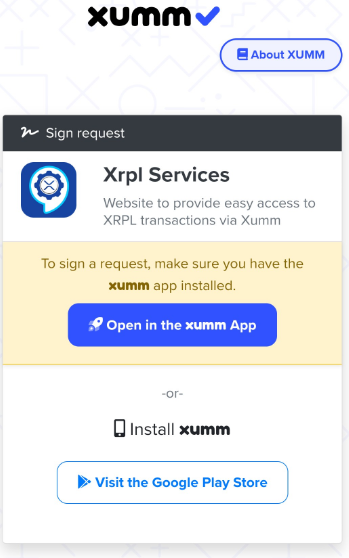
4\) Press the ![](https://3221812686-files.gitbook.io/~/files/v0/b/gitbook-x-prod.appspot.com/o/spaces%2FMiHAzvIPISVuuzt0AeOR%2Fuploads%2Fgit-blob-900b7f83d9c0bc94ebe42b632d68adf6f78de8c4%2Fimage.png?alt=media) button then press **Open in Xumm App** and sign in.

<figure><img src="https://3221812686-files.gitbook.io/~/files/v0/b/gitbook-x-prod.appspot.com/o/spaces%2FMiHAzvIPISVuuzt0AeOR%2Fuploads%2Fgit-blob-9ade49286ad7bd499d9ffa6252bcdb204d314b67%2FSign%20into%20Xumm.png?alt=media" alt=""><figcaption></figcaption></figure>

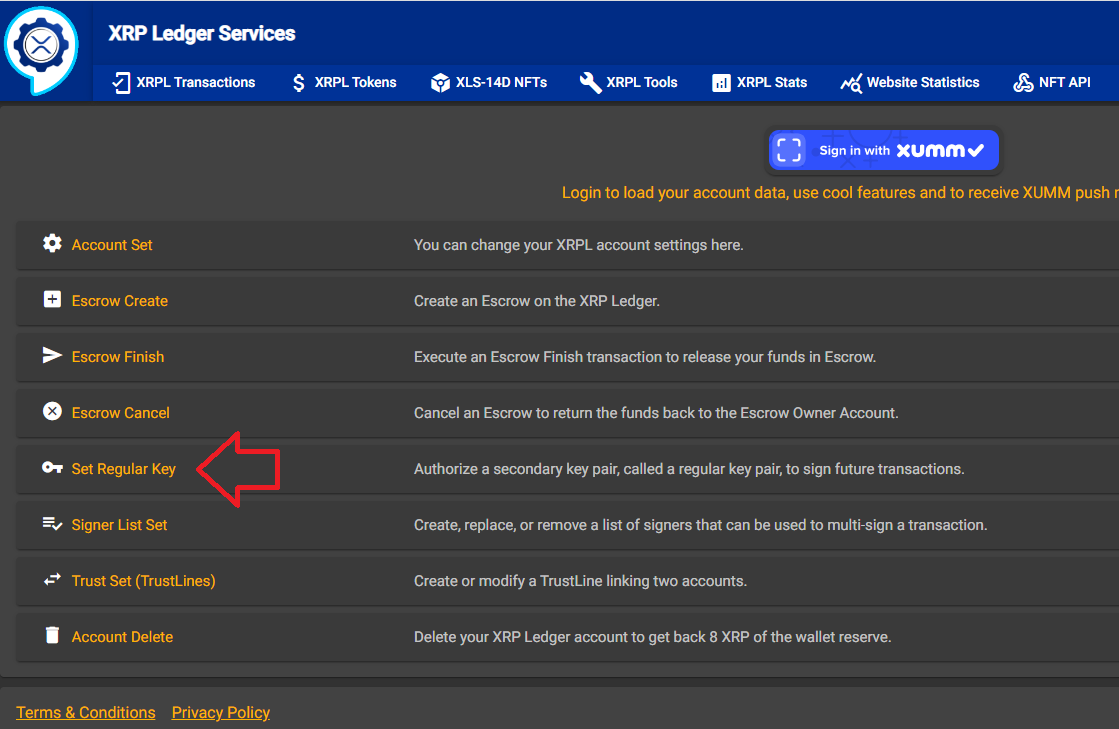
5\) On the XRP Ledger Services page, select **Set Regular Key**

<figure><img src="https://3221812686-files.gitbook.io/~/files/v0/b/gitbook-x-prod.appspot.com/o/spaces%2FMiHAzvIPISVuuzt0AeOR%2Fuploads%2Fgit-blob-306b13376dfc1e1cdd510614d68478d3b46f5cac%2FXRPL%20Services%20-%20Reg%20Key%20-%201.png?alt=media" alt=""><figcaption></figcaption></figure>

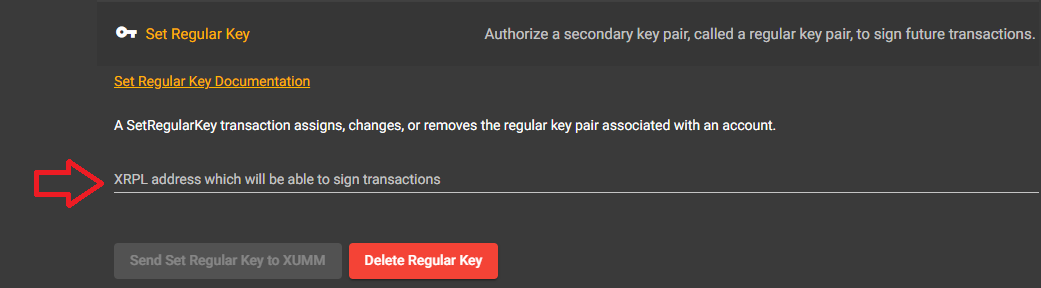
6\) In the field below paste the r-address for the Signing account, then press the **Send Set Regular Key to Xumm** button.

<figure><img src="https://3221812686-files.gitbook.io/~/files/v0/b/gitbook-x-prod.appspot.com/o/spaces%2FMiHAzvIPISVuuzt0AeOR%2Fuploads%2Fgit-blob-8a1a285f6f9c11ce628cd0a81bc5f7eb2824e68f%2FXRPL%20-%20Regular%20keys.png?alt=media" alt=""><figcaption></figcaption></figure>

7\) Sign the transaction in Xaman and you're all done!

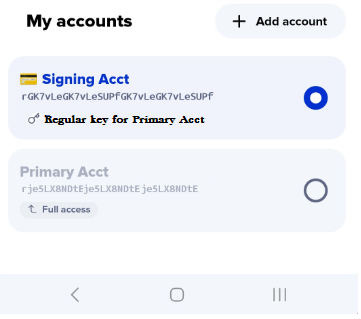
Now when you look at your Signing account, notice how Xaman now reports "Regular key for Primary Acct".

<figure><img src="https://3221812686-files.gitbook.io/~/files/v0/b/gitbook-x-prod.appspot.com/o/spaces%2FMiHAzvIPISVuuzt0AeOR%2Fuploads%2Fgit-blob-51dc1ad922a40f737624e018311b882e36ecc5d9%2Fregular%20keys%20-4.png?alt=media" alt=""><figcaption></figcaption></figure>

### Next steps..

If you configured the regular key so you would have a second signing account (E.g. as a "backup" account) you are all set to go. You should be able to sign transactions on your Primary Account with either your Signing account or your Primary account.

...but if you configured the regular key because your Primary account has been **compromised**, you are only half way there. The next step is to disable the master key for your Primary account.

This article explains how to proceed:

<table data-view="cards"><thead><tr><th align="center"></th><th data-hidden></th><th data-hidden></th><th data-hidden data-card-target data-type="content-ref"></th><th data-hidden data-card-cover data-type="files"></th></tr></thead><tbody><tr><td align="center">How to disable the Master key</td><td></td><td></td><td><a href="/app/learning-more-about-xaman/how-to-disable-the-master-key.md">How to disable the Master key</a></td><td><a href="https://3221812686-files.gitbook.io/~/files/v0/b/gitbook-x-prod.appspot.com/o/spaces%2FMiHAzvIPISVuuzt0AeOR%2Fuploads%2Fgit-blob-3fb7fc12e0d3dd7e629799e457ed593c3ee9deca%2FLarge%20rock%20with%20Lock%20-2.jpg?alt=media">Large rock with Lock -2.jpg</a></td></tr></tbody></table>


---

# Agent Instructions
This documentation is published with GitBook. GitBook is the documentation platform designed so that both humans and AI agents can read, navigate, and reason over technical content effectively. Learn more at gitbook.com.

## Querying This Documentation
If you need additional information that is not directly available in this page, you can query the documentation by asking a question.

Perform an HTTP GET request on the following URL with the `ask` and `goal` query parameters:

```
GET https://help.xaman.app/app/learning-more-about-xaman/how-to-rekey-your-account.md?ask=<question>&goal=<user_goal>
```

`ask` is the immediate question: it should be specific, self-contained, and written in natural language.
`goal` is what the user is ultimately trying to achieve, the reason they need the answer. Sharing it helps GitBook give you a better, more relevant answer. A goal is most helpful when it describes the outcome the user wants rather than restating the question. For example, with `ask=how do I create an API token`, a goal like `automate deployments from our CI pipeline` lets GitBook tailor the answer to that use case.

The response will contain a direct answer to the question and relevant excerpts and sources from the documentation.

Use this mechanism when the answer is not explicitly present in the current page, you need clarification or additional context, or you want to retrieve related documentation sections.