> For the complete documentation index, see [llms.txt](https://help.xaman.app/app/llms.txt). Markdown versions of documentation pages are available by appending `.md` to page URLs; this page is available as [Markdown](https://help.xaman.app/app/xaman-tangem-cards/how-to-link-an-existing-account-to-a-xumm-card.md).
# How to link an existing account to a Xaman card
Re-keying an existing account to a Xaman card
### Why would I want to do this?
Most people who purchase the cards already have an existing XRP Ledger account, so when they get their new cards, they want to 'link' them to their existing account. The idea is that the cards will either be a 'backup' to their existing account(s) or that the cards should work together with their existing accounts.
While it is easy to configure the cards this way, you should consider how you plan to manage your XRP Ledger accounts and why you purchased the cards.
### Xaman card (Hardware wallet) vs Xaman (Software wallet)
Xaman cards are hardware wallets and hardware wallets are largely about **long term storage** of your assets.
A hardware wallet stores the private keys for an XRP Ledger account on a device that is not connected to the internet and transactions can only be signed on the XRPL account if the signer is in possession of the hardware device. Storing private keys offline limits some potential attack vectors on an XRPL account.
Xaman is a software wallet and is largely about enabling **interaction** with the XRP Ledger ecosystem.
Xaman stores the private keys for an XRP Ledger account on a mobile device. (Which is presumably connected to the internet at various times.) It allows a user to sign transactions on their XRPL account via their phone. By storing private keys on a device that is online, it exposes an account to other types of potential attack vectors.
### How are you planning to interact with the XRPL ecosystem?
If you are going to use the cards as a 'savings' account, where you plan to store your XRP and wait for the price to go up, we recommend that you create a 'primary' card account and configure a 'backup' card account. By doing this, you take advantage of the cards' features. (Creating and storing the account secret offline.) Configuring the cards this way, does not involve an existing account.
If you plan to be **active in the XRPL community**, and want to use the cards with an existing XRPL account, you should consider that if you configure an existing account as a backup to a card account, you are **adding an additional attack vector** to the card account. If your existing account was ever compromised, someone could access your card account. (Configuring a card as a backup to an existing account is ok though.)
As long as you are aware of the potential risk, here are the instructions.
### How to configure a card to sign on an existing account
#### Step 1: Make sure you have an existing XRP Ledger account (Primary account)
The existing account must be imported into Xaman with **Full access** and you must be able to sign transactions on this account. (This is your XRPL account that contains your XRP, your Trust Lines, Escrows, DEX transactions, etc.)
#### Step 2: Import your new Xaman card into Xaman
Import your card into Xaman by following these instructions:
{% content-ref url="/pages/ynFD0GKqN8DWqB0hCzXB" %}
[How to import your Xaman card](/app/getting-started-with-xaman/importing-your-account/...a-xumm-tangem-card.md)
{% endcontent-ref %}
#### Step 3: Copy the r-address for your card
After you have imported your Xaman card, press the **Receive** button then press the **Copy** button:
then switch accounts to your **Primary** account (your existing account) in Xaman and press [**here**](https://xrpl.services/) to go to [**XRP Ledger Services**](https://xrpl.services/)**.**
#### Step 4: Sign into XRPL.Services with your existing account
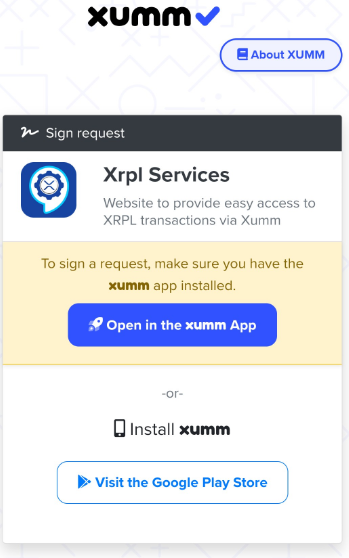
Press the  button then press **Open in Xumm App** and sign in.
#### Step 5: Set the Regular Key for your existing account
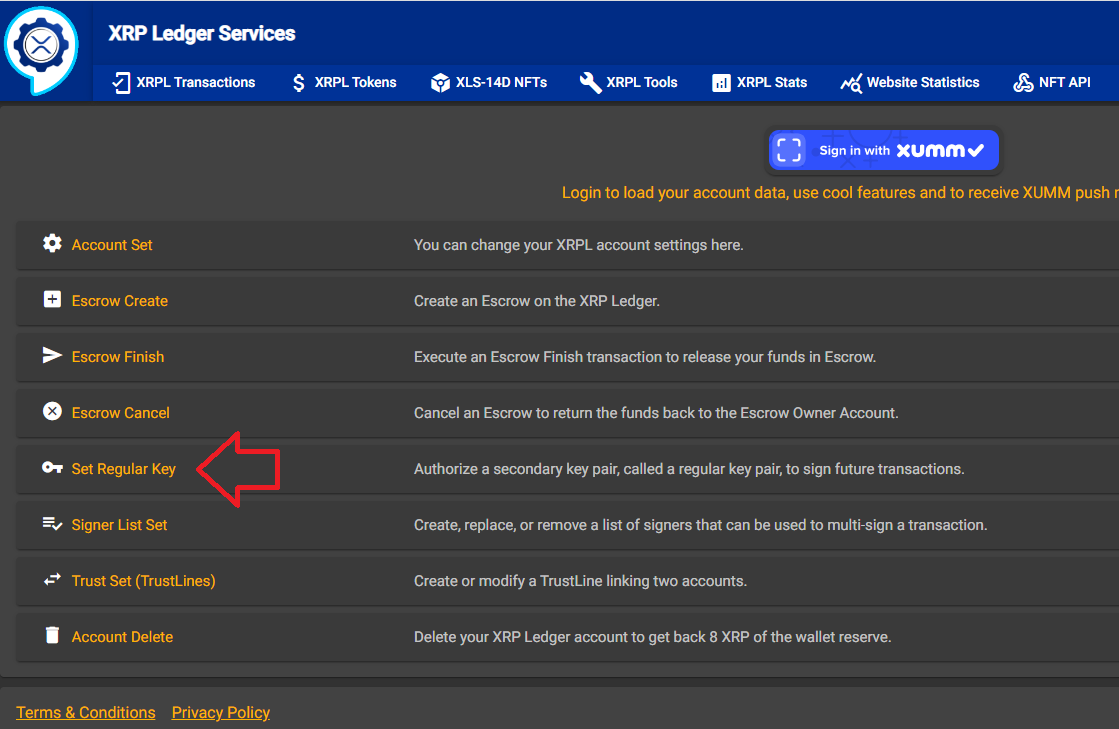
On the XRP Ledger Services page, select **Set Regular Key**
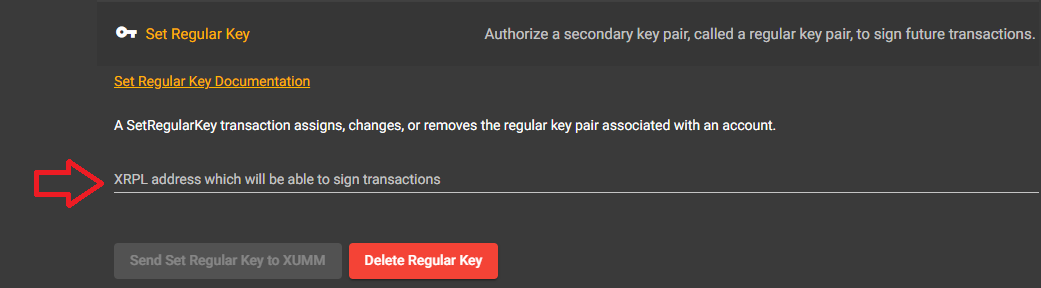
Paste the r-address for your new Xaman card in the field titled, "XRPL address which will be able to sign transactions", then press the **Send Set Regular Key to Xumm** button.
#### Step 6: Sign the transaction with your existing account
Sign the transaction in Xaman and you're all done!
{% hint style="info" %}
#### Important: what this procedure does and does not do
This procedure adds the card as a signer. It does not remove your existing keys. After you finish, both your original account secret (the master key) and the card can sign for the account. They work together, not in place of each other.
If your goal is for the card to be the only signer, you must also disable the master key. That is a separate advanced step. Talk to support before you do it.
{% endhint %}
### How to configure an existing account to sign on a card account
#### Step 1: Import your new Xaman card into Xaman
Follow these instructions to do this:
{% content-ref url="/pages/ynFD0GKqN8DWqB0hCzXB" %}
[How to import your Xaman card](/app/getting-started-with-xaman/importing-your-account/...a-xumm-tangem-card.md)
{% endcontent-ref %}
#### Step 2: Activate your new card account with at least 1 XRP
In order to hold assets in a XRP Ledger account, it must first be activated with at least 1 XRP.
This article explains how to activate an XRPL account:
{% content-ref url="/pages/qtAnBSRJ7bJjsxiiFv4a" %}
[Activating an account (XRPL)](/app/getting-started-with-xaman/how-to-activate-a-new-xrpl-account.md)
{% endcontent-ref %}
#### Step 3: Copy the r-address for your existing account
Switch accounts to your existing XRPL account and press the **Receive** button then press the **Copy** button:
then switch accounts to your **Xaman card account** and press [**here**](https://xrpl.services/) to go to [**XRP Ledger Services**](https://xrpl.services/)**.**
#### Step 4: Sign into XRPL.Services with your Xaman card
Press the  button then press **Open in Xumm App** and sign in.
#### Step 5: Set the Regular Key for your Xaman card account
On the XRP Ledger Services page, select **Set Regular Key**
Paste the r-address for your existing account into the field titled, "XRPL address which will be able to sign transactions", then press the **Send Set Regular Key to Xumm** button.
#### Step 6: Sign the transaction with your Xaman card
Sign the transaction with your Xaman card and you're all done!
{% hint style="info" %}
#### Important: what this procedure does and does not do
This procedure adds the card as a signer. It does not remove your existing keys. After you finish, both your original account secret (the master key) and the card can sign for the account. They work together, not in place of each other.
If your goal is for the card to be the only signer, you must also disable the master key. That is a separate advanced step. Talk to support before you do it.
{% endhint %}
### *Frequently Asked Questions*
#### What is the recommended way to configure my Xaman cards?
The recommended and ideal way to configure a card is to have **two cards**, then "link" them together using the Tangem Backup xApp. This is explained in this article:
{% content-ref url="/pages/0LkZXGH7xeeVL8moXmg5" %}
[Getting started with your new cards 🤗](/app/xaman-tangem-cards/getting-started.md)
{% endcontent-ref %}
#### I only have one card though...
Each card will generate and store an XRP Ledger account secret on the card.
The account secret **can not** be viewed or extracted from the card so anytime you want to sign a transaction on the card's account, you must have the card with you.
This is a great security feature but since the account secret only exists in one place, (on the card) what would happen if you lost or damaged the card? (You would lose access to your funds!)
This is why we only sell a minimum of two cards. With two Xaman cards, you can create a backup card which allows you to access your funds in case one of them is ever lost or damaged.
If you only have one card, "linking" an existing account to it allows your existing account to act as a backup in case something happens to the card.
---
# Agent Instructions
This documentation is published with GitBook. GitBook is the documentation platform designed so that both humans and AI agents can read, navigate, and reason over technical content effectively. Learn more at gitbook.com.
## Querying This Documentation
If you need additional information that is not directly available in this page, you can query the documentation by asking a question.
Perform an HTTP GET request on the following URL with the `ask` and `goal` query parameters:
```
GET https://help.xaman.app/app/xaman-tangem-cards/how-to-link-an-existing-account-to-a-xumm-card.md?ask=&goal=
```
`ask` is the immediate question: it should be specific, self-contained, and written in natural language.
`goal` is what the user is ultimately trying to achieve, the reason they need the answer. Sharing it helps GitBook give you a better, more relevant answer. A goal is most helpful when it describes the outcome the user wants rather than restating the question. For example, with `ask=how do I create an API token`, a goal like `automate deployments from our CI pipeline` lets GitBook tailor the answer to that use case.
The response will contain a direct answer to the question and relevant excerpts and sources from the documentation.
Use this mechanism when the answer is not explicitly present in the current page, you need clarification or additional context, or you want to retrieve related documentation sections.